Sky Go Streaming on Windows 11 How It Works
Estimated reading time: 18 minutes.
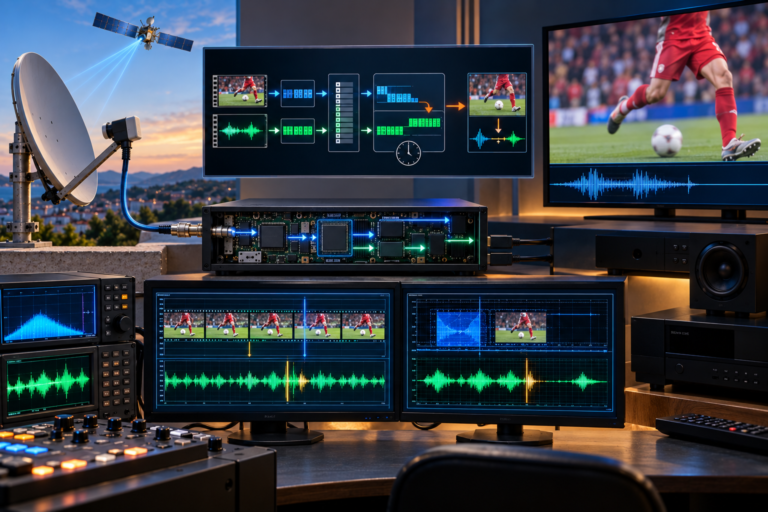
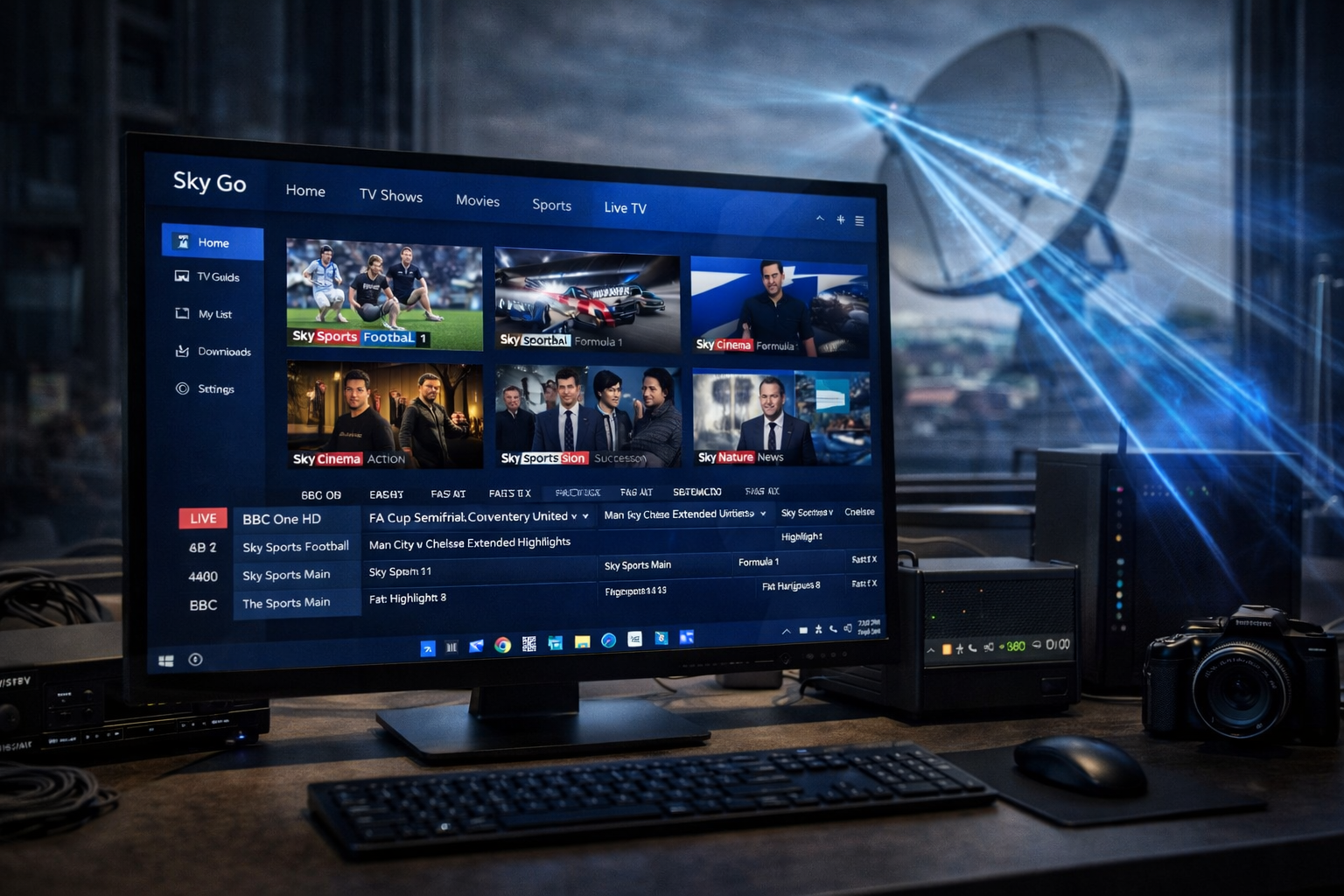
Sky Go on Windows 11 looks simple from the viewer side. You open the app, sign in, choose a live channel or on demand programme, and the stream begins. But under that simple surface, several technical layers work together at the same time. The application has to authenticate the account, request the correct stream, build a playback buffer, decode the incoming video, and present it smoothly inside the Windows environment.
That is why streaming behavior can feel very different from traditional satellite viewing. A satellite receiver depends mainly on dish alignment and signal quality from the transponder. Sky Go on a Windows 11 computer depends on network consistency, local graphics performance, memory behavior, and the way the application manages protected media playback. This guide explains how that process works in practical terms so viewers can understand what is happening behind the screen.
Quick Context
This guide explains how Sky Go streaming works on Windows 11, how the app delivers live and on demand video, and why buffering, black screens, and unstable playback usually come from a specific part of the streaming chain.
- What Sky Go streaming on Windows 11 actually means
- What happens when the app starts
- How the app requests live and on demand streams
- How buffering works during playback
- How Windows 11 decodes and displays the video
- Why network stability matters more than raw speed
- How video quality changes during real use
- Why streaming does not behave like direct satellite reception
- How to understand playback behavior when problems appear
- Typical Sky Go streaming scenarios
- Reality Check
- Final Verdict
- Frequently Asked Questions
What Sky Go streaming on Windows 11 actually means
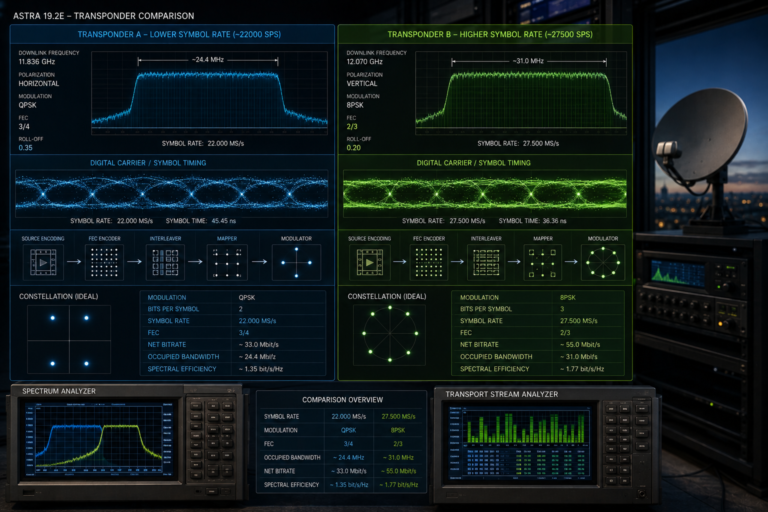
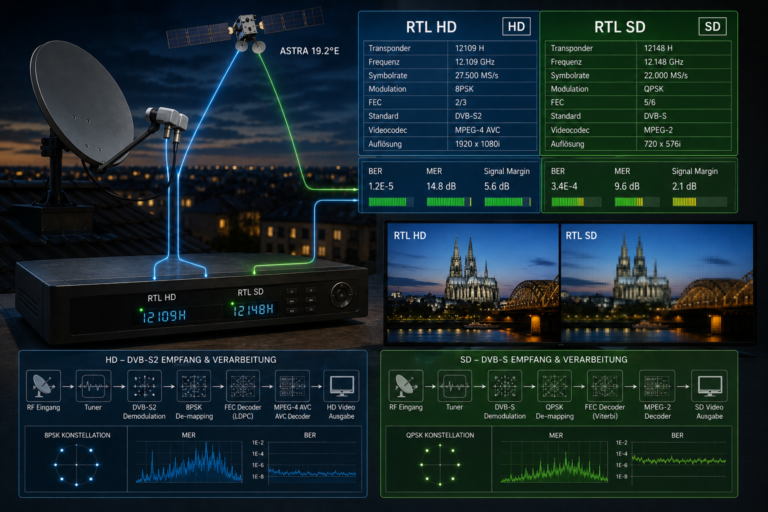
Sky Go streaming on Windows 11 means television content is delivered over the internet to the desktop application instead of being decoded from a dish fed tuner. This difference is more important than many viewers realize. In a classic satellite setup, the receiver listens to a transponder frequency and decodes the signal continuously as long as dish alignment and signal quality remain good.
With Sky Go, the application works more like a managed streaming client. It connects to the user account, checks what content is available, and then requests video data from streaming servers. The app does not receive the programme as one raw continuous satellite feed. Instead, it receives controlled chunks of data that are assembled into smooth playback on the local machine.
That is why Sky Go can work well on one Windows 11 laptop and less well on another, even if both users have access to the same channel. The delivery path includes the internet connection, the app itself, Windows media handling, the graphics driver, and local system conditions. Streaming is a chain, not a single signal event.
Understanding that chain is the best way to understand how Sky Go really works.
What happens when the app starts
The first stage begins when the user opens the Sky Go desktop application. At that moment, the app is not yet streaming video. It first initializes its local session, loads stored settings, checks account status, and prepares the interface. If sign in is needed, the app must complete that step before any content request can move forward.
This startup stage matters because it is the handoff between the Windows 11 environment and the Sky service layer. If the app cannot complete startup normally, the issue is not about buffering or stream quality yet. It is still a launch or session problem.
Once the user reaches the app interface and browsing works correctly, the local environment is already doing several tasks quietly in the background. It is managing local app data, preparing the media path, and confirming that the device is in a usable state for playback. Only after that can a selected channel or programme move into stream request mode.
So before video even begins, the app is already coordinating account, system, and interface behavior at the same time.
How the app requests live and on demand streams
When the viewer selects a live channel or an on demand title, the app sends a request through the network to retrieve the correct media stream. This request is not just a simple video download. The app needs to know what the viewer is allowed to watch, which version of the stream should be delivered, and how the playback session should be maintained.
Live content and on demand content may feel similar to the viewer, but they behave slightly differently in practice. Live streaming is more sensitive to timing because the app is trying to stay close to the current broadcast point. On demand playback has a little more flexibility because the app can work through stored video assets rather than a continuously moving live edge.
In both cases, the content is delivered in small sequential parts. The application collects these pieces and feeds them into the playback engine. That is how the stream stays manageable over normal internet connections and how the app can react if conditions change during viewing.
This segmented delivery model is one of the most important ideas behind how Sky Go works on Windows 11.
How buffering works during playback
Buffering is the short reserve of downloaded video that sits ahead of what the viewer is currently watching. If the app can keep enough data in that reserve, playback stays smooth. If the reserve starts shrinking because data arrives too slowly or decoding falls behind, the viewer may see pauses, quality drops, or repeated interruptions.
Many people think buffering means the stream has stopped completely, but that is not always true. In many cases the stream is still arriving, just not fast or consistently enough to stay comfortably ahead of playback time. The app then has to pause briefly to rebuild its reserve.
This is why short network drops, Wi Fi instability, or heavy local system load can all create visible buffering. The stream itself may still be available, but the app no longer has enough margin to hide those fluctuations.
Buffering is therefore not random behavior. It is the visible result of the playback reserve becoming too small.
How Windows 11 decodes and displays the video
Once stream data reaches the computer, the job is not finished. Windows 11 and the local graphics path must still decode the video and present it on screen. This part is often overlooked because viewers naturally focus on the internet connection first. But a stable connection alone does not guarantee smooth playback if the local device cannot render the stream efficiently.
The desktop app relies on Windows graphics behavior and local driver support to turn compressed media data into moving video frames. If hardware acceleration works well, the graphics subsystem helps carry the workload. That usually improves smoothness and reduces pressure on the main processor.
If that path is unstable, the app may still receive the stream but fail to display it correctly. That is where black screens, jerky playback, dropped frames, or awkward full screen transitions can appear. The video exists, but the display chain is struggling.
This explains why some streaming problems feel visual rather than network related. The issue is not always stream delivery. Sometimes it is local decoding and rendering.
Why network stability matters more than raw speed
Viewers often judge a connection by peak speed alone, but streaming performance depends more on consistency than on short bursts of fast transfer. A Windows 11 laptop may show a good speed test result and still perform badly if the connection path keeps fluctuating during playback.
Sky Go needs a stable stream of incoming media segments. If the connection swings between strong and weak delivery, the app may keep adjusting quality or rebuilding its playback buffer. That creates the familiar pattern of smooth playback followed by sudden pauses or drops in image quality.
This is especially common on shared Wi Fi networks where other devices are downloading updates, backing up files, or streaming their own video sessions. The average speed may still look acceptable, but the delivery pattern becomes uneven enough to disturb real time playback.
That is why network stability should be treated as a steady flow problem rather than a simple speed number problem.
How video quality changes during real use
Sky Go streaming on Windows 11 does not always stay at one fixed visual quality. The app adjusts to current conditions to keep playback going. If the connection path is healthy and the system is decoding smoothly, the stream can remain stable at a better quality level. If conditions weaken, the app may reduce quality to protect continuity.
This behavior is normal in modern streaming systems. It is one of the reasons the service remains watchable across different home setups. However, it also explains why some viewers notice quality shifts even when playback does not fully stop.
A brief quality drop can actually be the app protecting the viewing session. Instead of freezing immediately, it chooses a lighter stream state that is easier to deliver and decode under current conditions. If conditions recover, quality may rise again.
So quality changes are often a sign of adaptation, not necessarily a sign of a broken app.
Why streaming does not behave like direct satellite reception
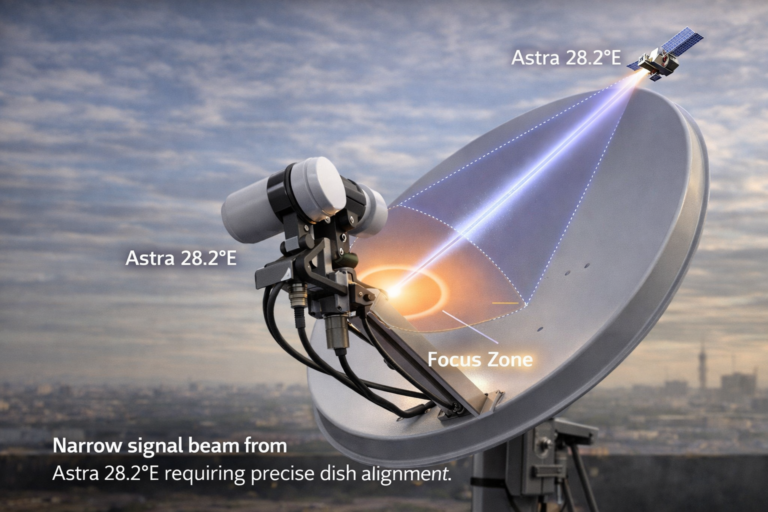
Sky Go on Windows 11 is related to television viewing, but it behaves very differently from a satellite receiver connected directly to a dish. Satellite reception depends heavily on dish alignment, LNB condition, cable quality, and weather effects such as rain fade. Once the signal arrives cleanly, the receiver decodes it in a more direct way.
Streaming shifts the weak points elsewhere. The dish is no longer part of the chain at the viewing device. Instead, the critical factors become service authentication, network delivery, playback buffering, graphics decoding, and local system health.
This is why troubleshooting habits from satellite installations do not always help when watching Sky Go on a Windows 11 PC. A user may think in terms of signal loss, but streaming problems are often session, buffering, or rendering problems instead.
The two systems both deliver television, but the mechanics behind them are very different.
How to understand playback behavior when problems appear
A good diagnosis starts by watching where the failure appears in the streaming chain. If the app will not open, the issue belongs to launch or installation. If it opens but sign in fails, the issue is at the account stage. If playback starts and then buffers, the weakness is usually in delivery consistency or local performance. If menus work but the video area stays blank, the display path is the stronger suspect.
This stage by stage thinking helps users understand how Sky Go works in real life. It turns vague complaints into usable technical observations. The app is not simply working or not working. One part of the chain may be failing while another part is healthy.
For example, a stream that starts quickly but degrades after ten minutes suggests a different cause from a stream that never displays video at all. The first pattern points more toward load, heat, or network stability. The second points more toward rendering or playback initialization.
Once the viewer sees the chain clearly, troubleshooting becomes much more logical.
Typical Sky Go streaming scenarios
| Scenario | What is probably happening | Recommended check |
|---|---|---|
| App opens and live video starts quickly | Startup account check and stream request are working normally | Observe long session stability rather than launch only |
| Playback buffers after a few minutes | The playback buffer is shrinking because delivery or decoding cannot stay ahead | Check network consistency and background system load |
| Menus work but the video area stays blank | The stream request may have started but the rendering path is struggling | Review graphics driver behavior and display handling |
| Picture quality changes during viewing | The app is adapting the stream to current conditions | Monitor Wi Fi stability and local performance margin |
Reality Check
Sky Go on Windows 11 is not just a video app playing one fixed signal. It is a managed streaming system that depends on account access, segmented delivery, local buffering, graphics decoding, and network consistency all at the same time. When viewers understand that chain, playback behavior becomes much easier to explain.
Final Verdict
Final Verdict
Sky Go streaming on Windows 11 works by combining account authentication, segmented media delivery, local buffering, and Windows based video rendering into one viewing process. Live channels and on demand programmes both rely on this chain, and any weakness in delivery consistency, graphics handling, or local system load can affect the result. The more clearly viewers understand how the stream is requested, buffered, decoded, and displayed, the easier it becomes to diagnose buffering, black screens, or unstable performance in a realistic way.
Frequently Asked Questions
| Question | Answer |
|---|---|
| Does Sky Go stream like a normal satellite receiver | No. A satellite receiver decodes a direct broadcast signal, while Sky Go delivers content through an internet based segmented streaming process. |
| Why does Sky Go buffer even when my connection seems fast | Because stability matters more than short speed bursts. Uneven delivery can shrink the playback buffer even on a connection that looks fast in simple tests. |
| Why can the app menu work while the video stays black | That usually means the app interface is running but the local video rendering or decoding path is failing during playback. |
| Why does picture quality sometimes change by itself | The app adjusts stream quality during real use to keep playback going when conditions become weaker or more unstable. |